
Rex Automation Docs
Complete reference for Rex Automation — Tibia's most reliable bot. Covers all features and configuration options.
Introduction
What is Rex Automation?
Rex Automation is a Tibia bot that runs alongside your game client and automates repetitive tasks: healing, targeting monsters, navigating the map, and managing consumables. It works by simulating human-like mouse clicks and keyboard strokes, keeping a low detection footprint.
Rex is designed around reliability and configurability, with per-vocation spell support and a clean UI that stores your setup per character/location.
Quick Start
- Launch Rex Automation and log in with your account credentials.
- Set up your Tibia client, OBS Studio and minimap (first time only), then enter the game with your character.
- In the Choose Client window, pick your OBS scene and source, select your Tibia client and click Launch REX (or just double-click the client).
- Open each tab (Healing, Cavebot, Targeting, Looting, Tools) and configure your rules.
- Check Enabled on each module you want to use. The bot starts working right away.
Initial Setup
Tibia Client
Set these options in the Tibia client before you start:
- Open Options > Controls and set Mouse Preset to Classic Controls.
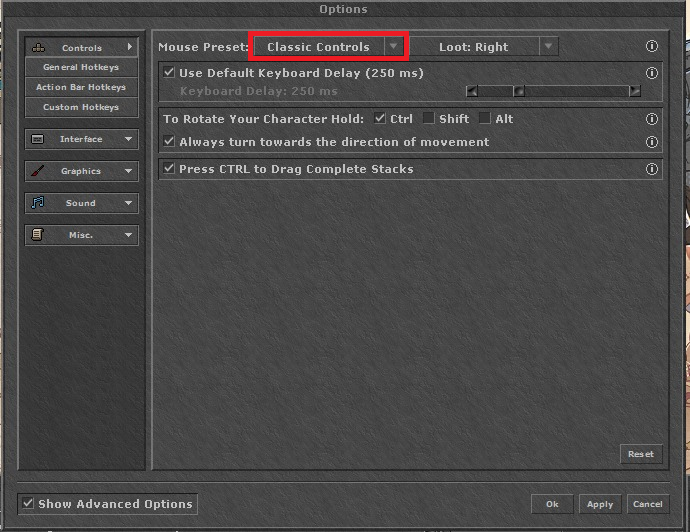
Mouse Preset set to Classic Controls. - Open Options > Interface > HUD and turn on Show Status Bars (or Show Customisable Status Bars). Rex needs at least one of them to read your HP and MP, see Where Rex Reads HP and MP.
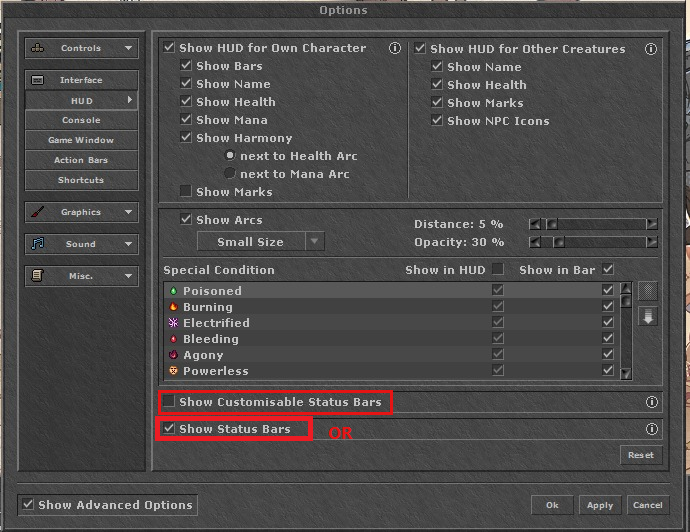
Show Status Bars or Show Customisable Status Bars enabled (either one works).
OBS Studio
Rex receives the game image through OBS Studio, so OBS must be installed and open while you use Rex. Download it from obsproject.com. The Rex installer finds OBS and installs its own plugin automatically.
- Open OBS and the Tibia client.
- In Scenes, select your scene.
- In Sources, right-click, choose Add and then Game Capture. Name it (for example Tibia) and confirm.
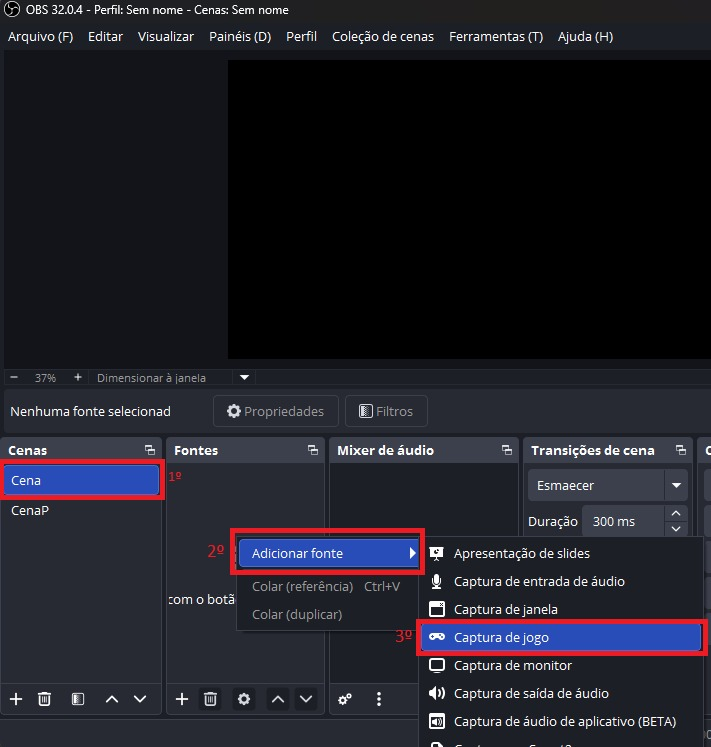
Select the scene, then Add, then Game Capture. 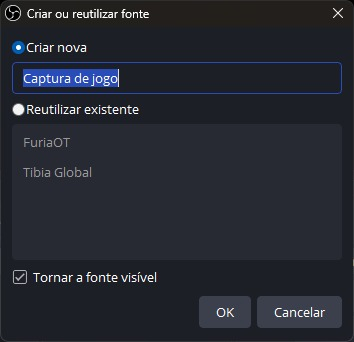
Create the source and confirm. - In the source properties, use these values and leave every other option unchecked:
- Mode: Capture specific window
- Window: [client.exe]: Tibia
- Window match priority: Match title, otherwise find window of same executable
- Use anti-cheat compatibility hook: checked
- Capture rate: Normal (recommended)
- Color space: sRGB
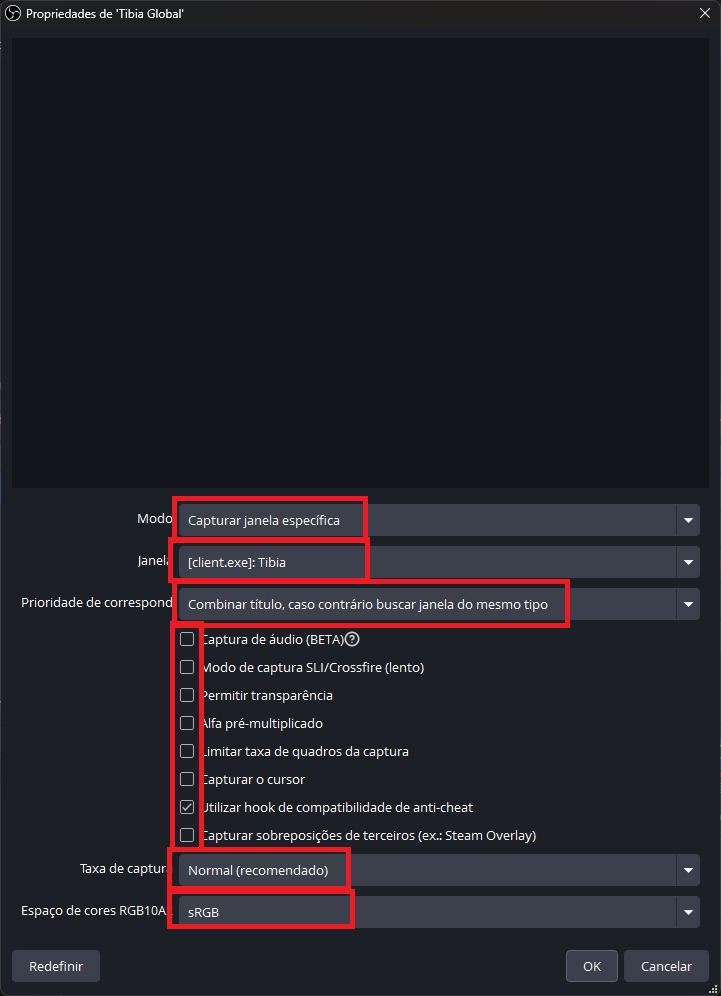
The source properties with the values above. - In Rex, when you choose your client, pick your scene and source in the list (shown as Scene - Source).
Minimap
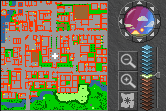
Rex finds your position by comparing the minimap on your screen with the full Tibia map, so the minimap needs the map files installed and the correct zoom.
- Download and install the Tibia maps installer.
- In the Tibia minimap, click ZOOM - until it cannot be zoomed out any further.
- Then click ZOOM + only once.
That is it: the minimap now looks exactly as Rex expects.
Battle List
Rex attacks the creatures in the order they appear in the Tibia Battle List, so set it up like this before using Targeting:
- Open Options > Gameplay and leave Auto Chase Off unchecked, as shown.
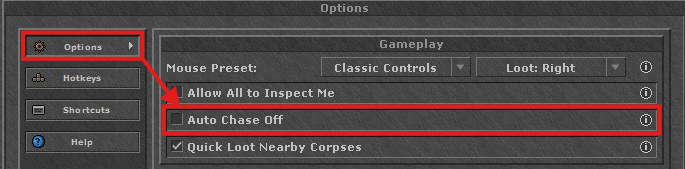
Options > Gameplay: Auto Chase Off unchecked. - In the Battle List menu, choose Sort Ascending by Distance, so the closest creature is always first.
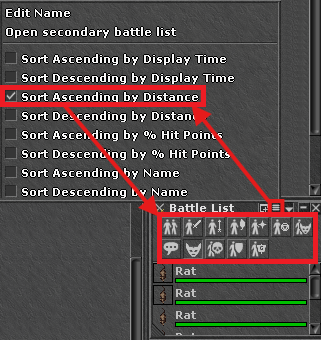
Battle List menu: Sort Ascending by Distance.
Then continue with Monster Rules and Attack Mode.
Cavebot
Overview
The Cavebot navigates your character automatically using a list of waypoints. It loops through the list continuously, executing each waypoint in order.
Waypoints are stored per-profile in JSON configuration files, so each hunting spot has its own saved route.
A waypoint is a plain coordinate (X, Y, Z) compared with your character's position, which Rex reads in real time, so the Cavebot does not depend on Tibia map markers. For this to work, set up the minimap first. How the character moves between waypoints depends on the Walking Method, and what happens at each one depends on its type.
Waypoint Types
Every waypoint has a type that determines what Rex does when it reaches the target coordinates:
Walking Method
Rex supports two movement strategies:
Map Walk Distance
When using Map Clicks, this controls how far each minimap click targets. Each click picks a random distance inside the range:
| Type | Distance | Best for |
|---|---|---|
| Low | 5 to 7 sqm | Tight corridors, precise navigation in narrow cave passages. |
| Medium | 8 to 12 sqm | Most hunting grounds — balanced speed and accuracy. |
| High | 15 to 20 sqm | Open areas where you need to cover ground quickly. |
Minimap Window
The minimap window shows the whole map with your waypoints. It opens centered on your character, with the green marker already on your position, and the character is followed while you walk.
- Cavebot Path (gear menu) — shows or hides the dashed line that links your waypoints along the route Rex will walk. Turn it off if you prefer a cleaner map.
- The route line is only recalculated when your waypoints or the visible floor change, not on every step.
Healing
HP / MP Rules
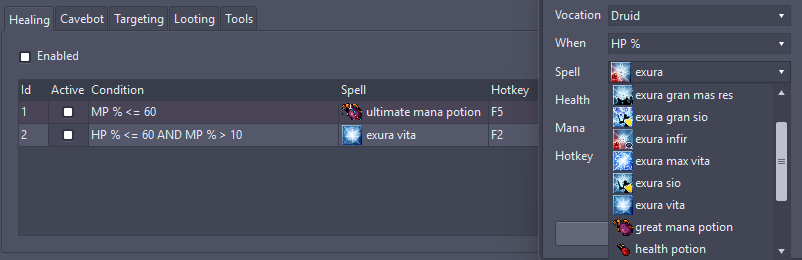
The Healing module monitors your character's HP and MP in real time. When a threshold is crossed, Rex fires the configured spell or potion via the assigned hotkey.
Each rule configures:
- Vocation — your vocation. Choose it first: the Spell list then shows the spells for that vocation.
- Spell / Potion — the heal to activate (e.g. exura, exura vita, health potion).
- Hotkey — keyboard shortcut assigned to this spell in the Tibia client.
- When — HP % or MP %.
- Health — fires when HP% drops to or below this value (only checked when When = HP %).
- Mana — fires when MP% drops to or below this value (only checked when When = MP %).
- Active — toggles the rule on/off without deleting it.
Where Rex Reads HP and MP
Rex reads your HP and MP from the screen, never from the game process. It prefers the Customisable Status Bar (the large bar at the top of the client, which has a much longer track and is therefore more accurate) and falls back to the side panel next to the equipment and minimap.
- Customisable Status Bar on screen: HP and MP come from it, even if the side panel is closed.
- Only the side panel on screen: HP and MP come from the panel, as before.
- Neither on screen: Rex cannot read HP/MP. After about 10 consecutive readings without either bar it logs an error once, and Healing does nothing until a bar is visible again.
statusBarEnabled (Customisable Status Bar) and statusPanelEnabled (side panel) in the Tibia client options. Keep at least one of them enabled.Condition Healing
Rex detects active status effects and automatically cures them using the configured spell. Common condition → cure mappings:
Poisoned → exana poxBleeding → exana korBurning → exana flamCursed → exana mortElectrified → exana visFreezing → exura / any healHaste → utani hurMagic Shield (Mage) → utamo vitaStrengthened → utito tempoEach condition rule also supports:
- Not condition — trigger when the condition is absent (e.g. re-cast haste when it expires).
- Ignore When PZ — skip this rule inside a Protection Zone (saves mana when safe).
Targeting
Monster Rules
Define which monsters Rex should attack and with which spell. Each rule contains:
- Monster name — matched case-insensitively against the creature name (e.g. Swamp Troll, swamp troll, and SWAMP TROLL all match the same rule).
- Spells — up to 4 spell entries per rule. Rex tries them in order and uses the first one that is off cooldown, in range, safe to cast and satisfies all of its own conditions (see below) — not a single fixed spell/hotkey.
- HP range — only target creatures whose remaining HP % is within this range.
- Danger — priority score for this rule (higher = more dangerous monster, evaluated first).
- Active — toggles the rule on/off without deleting it.
Each spell entry has its own conditions:
- Spell and Hotkey — the spell to cast and the key assigned to it in the Tibia client.
- Mana % — minimum mana percentage required to cast (new entries start at 1%).
- Targets — minimum number of creatures of the rule that must be inside the area of this spell (1 to 99, new entries start at 1). The or more checkbox next to it chooses between "N or more" (default) and "exactly N".
- Harmony — Monk only, see Monk: Harmony.
Monk: Harmony
Monk spells either build Harmony points or spend them, up to a maximum of 5. The Harmony field of a spell entry (0 to 5) makes Rex cast that spell only when you have at least that many points. 0 ignores Harmony (the default). The field is only visible when the Targeting vocation is Monk, and it only applies to spells that exist exclusively for Monks — shared spells ignore it.
Rex reads your points from the Customisable Status Bar of the Tibia client, so the bar must be visible on screen. It was validated with the Default, Compact, Large and Parallel styles docked on top, and it also reads the Serene gem.
statusBarEnabled is false in the Tibia clientoptions.json, Rex writes a warning to the log (once) explaining why the spell will not fire as expected. Turn the Customisable Status Bar on in the client options to fix it.Attack Mode
Two ways Rex can engage a target:
Looting
Looting collects the loot around your character. Each time Rex finishes a kill, it presses your loot hotkey once, so the corpses next to you are opened right after the creature dies.
Two settings:
- Active — turns looting on or off.
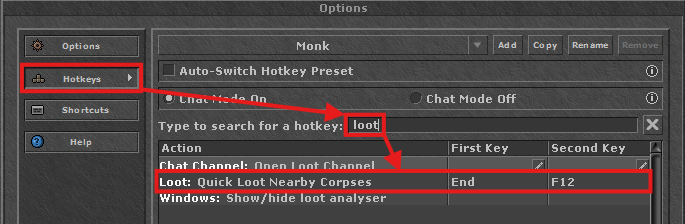
- Hotkey — the key Rex presses after each kill.
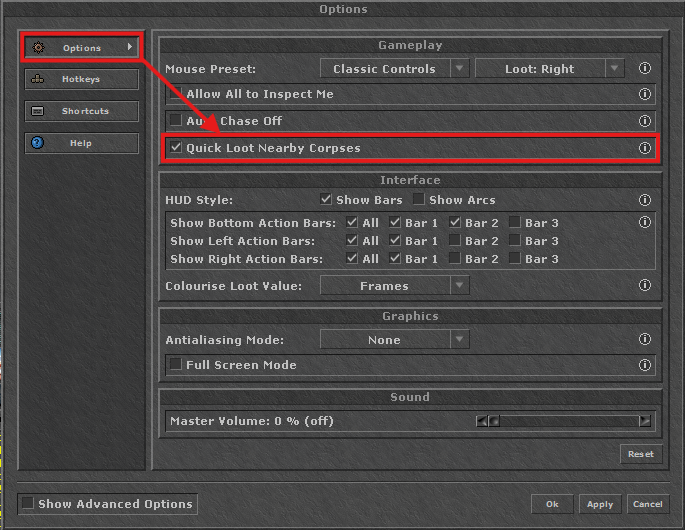
In the Tibia client, turn on Quick Loot Nearby Corpses and give it a key. Use that same key in the Hotkey field above.
Tools
Eat Food
Presses your food hotkey about once a minute (every 50 to 70 seconds, at a random moment each time), so keep food in the backpack used by that hotkey. It does not wait for the Hungry status. Configure the hotkey that corresponds to a "use food" action in Tibia. Keeps regeneration at full speed during long AFK sessions.
Mana Training
Sends the mana training hotkey every 2 seconds, but only while your mana is at 98% or more, to exercise your character's magic level while idle. Pair this feature with a passive training setup (e.g. mana shield on a dummy) to level magic level overnight.
Equipment
When the ring slot of your equipment becomes empty, Rex presses the configured hotkey to equip a new ring (for example, a life ring). The equipment panel must be visible on screen.
Additional tool hotkeys:
- Shovel hotkey — used by the Shovel waypoint type to open holes.
- Rope hotkey — used by the Rope waypoint type to climb out of holes.
Settings
Mouse Settings
| Setting | Description |
|---|---|
| Mouse Mode | Movement algorithm. Simulate Mouse mimics natural hand movement. |
| Mouse Speed | Cursor movement speed, range 1-10. Higher = faster movement (it divides the per-step delay internally). Affects all click interactions. |
| Click Wait Time | Delay (ms) between each simulated click and the next bot action. |
Walk Timing
| Setting | Description |
|---|---|
| Walk Min (ms) | Minimum pause between walk steps (20 to 1000 ms, default 75). Combined with Walk Max, creates randomized timing. |
| Walk Max (ms) | Maximum pause between walk steps (20 to 1000 ms, default 150). Rex picks a random value in the [min, max] range each step. |
Keyboard
| Setting | Description |
|---|---|
| Stuck Ctrl/Shift Policy | What Rex does before a critical action if you are holding Ctrl or Shift manually. Do Nothing proceeds anyway; Wait Until User Releases Key pauses the action (and logs a warning) until you let go. |
Hotkeys
| Hotkey | Description |
|---|---|
| Pause | Toggle to pause or resume bot activity instantly. No key is assigned by default, so set one in Settings first. Works from anywhere, but only affects the modules selected in Pause Targets (see note below). |